Aniki ScreenSaver
Aniki ScreenSaver automatically presents games from your Playnite library after a period of inactivity.
It is separate from Windows Screen Saver and separate from game launch Splash Screens.
First-time setup
- Open Playnite Desktop → F9 → Extension settings → Generic → Aniki Helper → Exclusive Features → Aniki ScreenSaver.
- Enable Aniki ScreenSaver.
- Choose how long Playnite should remain inactive before it starts.
- Choose how often the displayed game should change.
- Select a Games source.
- Use Preview ScreenSaver to test the result immediately.
- Save.
Once the preview works, continue below only if you want a specific filter, Splash Screen artwork or different ScreenSaver content.
Open ScreenSaver settings
- Open Playnite Desktop.
- Press F9.
- Open Extension settings → Generic → Aniki Helper.
- Open Exclusive Features.
- Select Aniki ScreenSaver.
Enable the ScreenSaver
- Enable Aniki ScreenSaver.
- Choose Start after inactivity.
- Choose Change game every.
- Choose a Games source.
- Save.
The ScreenSaver starts only when:
- Playnite Fullscreen is active;
- Playnite is in the foreground;
- no game is running;
- no conflicting Aniki secondary window is open.
Any controller, keyboard or mouse input closes it.
Choose which games are shown
Select Games source.
Available sources include:
- All games
- Installed games
- Favorites
- Never played
- Recently added
- Current Playnite filter
- Weighted random selection
Hidden games are excluded.
Use the current filter
Choose Current Playnite filter if you want the ScreenSaver to use the same filtered set you were browsing in Fullscreen.
This can be useful for a platform/category-specific slideshow without creating a separate ScreenSaver library.
Use Splash Screen images
Enable Use Splash Screen images when available.
The ScreenSaver follows the image priority from your Splash Screen configuration.
Videos are ignored for this feature; when necessary Aniki uses the game background instead.
See Splash Screens for the media priority setup.
Change what the ScreenSaver shows
You can independently enable:
- game logo;
- game information card;
- slow background zoom;
- fade transitions between games.
Start simple, preview it, then add the elements you want.
Preview the ScreenSaver
- Configure your options.
- Click Preview ScreenSaver.
- The preview opens immediately.
- Press any keyboard/controller button or move/click the mouse to close it.
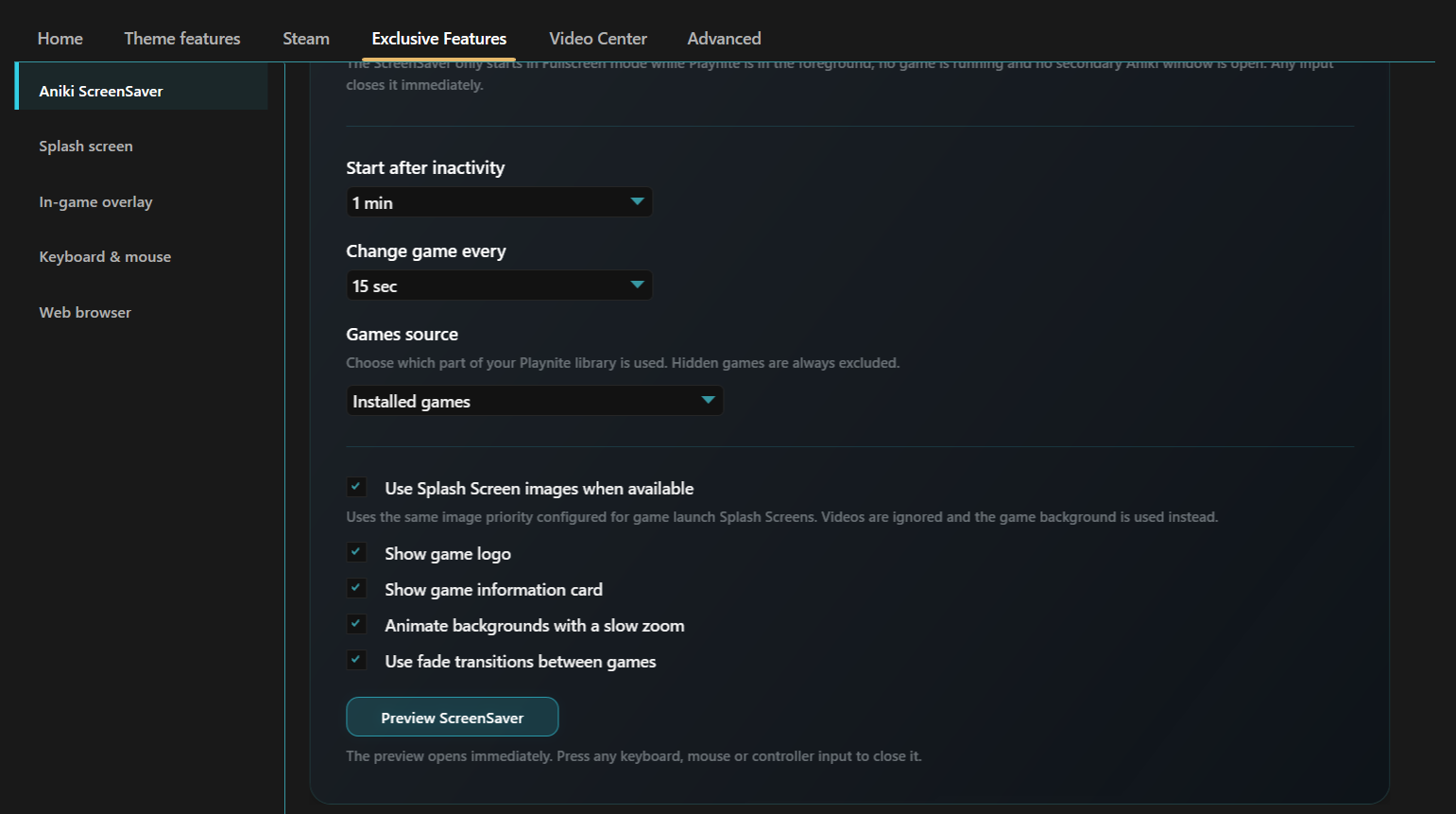
images/aniki-screensaver-01.pngUse Preview before waiting for the inactivity timer.