Other Add-ons, Integrations & Software Tools
In this guide, an integration is simply an optional Playnite add-on / extension that Aniki can use or expose inside the theme.
This page covers supported/recommended add-ons that do not need a full dedicated guide.
ControlUp
ControlUp is recommended if you want a more controller-first Playnite startup workflow.
It detects controller connections and can either prompt you to switch from Desktop to Fullscreen or switch directly to Fullscreen automatically.
Install
- Open Playnite Desktop.
- Press F9.
- Open Browse → Generic.
- Search for ControlUp.
- Install it.
- Restart Playnite if requested.
Configure automatic Fullscreen switching
- Open ControlUp's settings in Playnite Desktop.
- Choose when controller detection should trigger.
- If you want to switch directly without a confirmation popup, enable the option that skips the connection popup.
- Save.
ControlUp is optional and is not required by Aniki ReMake.
AudioSwitcher
AudioSwitcher lets Aniki expose quick audio-device switching.
Install
- Open Playnite Desktop.
- Press F9.
- Open Browse → Generic.
- Search for AudioSwitcher.
- Install and configure it.
- Restart if requested.
Open from Aniki
From Fullscreen:
- Press Start / Menu.
- Select Extras.
- Select Audio Switcher.
AudioSwitcher can also be exposed from the In-Game Overlay.
Custom Fade Animations for Playnite (CustomFadeAnim)
Custom Fade Animations for Playnite is an optional add-on that replaces Playnite's normal background transition with configurable effects such as custom fades, blur fades, fade + zoom, slides and other animation styles.
Install it if you want more control over the transition between game backgrounds.
- Open Playnite Desktop.
- Press F9.
- Open Browse → Generic.
- Search for Custom Fade Animations for Playnite / CustomFadeAnim.
- Install it.
- Configure its settings in Desktop mode.
If you are happy with Aniki's normal transitions, you do not need it.
Extra Metadata Loader
Extra Metadata Loader is the optional integration used for additional logos, videos and trailers.
For the actual setup flow, see:
Playnite Software Tools
Aniki can expose applications configured as Playnite Software Tools.
First create/configure the tool in Playnite Desktop:
- Click the Playnite icon in the top-left corner.
- Open Library.
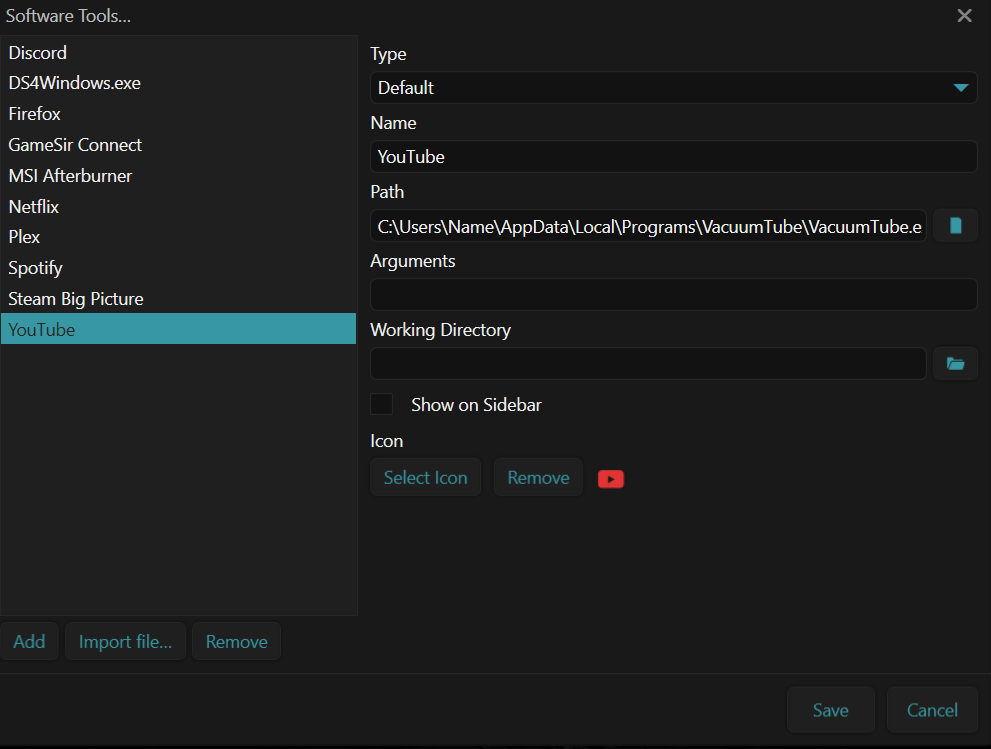
- Select Software Tools....
- Add/configure your application.
- Save.
Example: add VacuumTube for a console-style YouTube app
If you want a YouTube TV / console-style experience that you can launch directly from Aniki, a useful option is VacuumTube:
Download the latest VacuumTube release
VacuumTube is an unofficial desktop wrapper for YouTube Leanback, the TV/console-style YouTube interface. It adds controller support and can run as a fullscreen desktop application.
1. Install VacuumTube
- Open Download the latest VacuumTube release above.
- In the release Assets, download the Windows installer for your system.
- Install VacuumTube normally.
- Launch it once outside Playnite and make sure YouTube works.
- Test navigation with your controller.
VacuumTube settings can also be opened with R3 on a controller.
2. Optional — make VacuumTube start in fullscreen
VacuumTube has its own Fullscreen setting.
Enable it if you want the application to open directly as a TV-style fullscreen app when launched from Aniki.
VacuumTube also supports the --fullscreen command-line option if you prefer to force fullscreen from the Playnite Software Tool arguments.
3. Add VacuumTube to Playnite Software Tools
In Playnite Desktop:
- Click the Playnite icon in the top-left corner.
- Open Library.
- Select Software Tools....
- Add a new Software Tool.
- Name it VacuumTube or YouTube.
- Select the installed VacuumTube executable as the application path.
- Optionally add
--fullscreenas an argument if you want the Playnite shortcut to force fullscreen. - Save.
4. Launch it from Aniki
You now have two useful options.
From Extras
- Open Aniki Fullscreen.
- Press Start / Menu.
- Open Extras.
- Select Software Tools.
- Select VacuumTube.
Put VacuumTube directly on the Hub
If you use it often, assign it to one of the four Hub Features & Apps slots:
- Open
Aniki Helper → Theme features → Startup & Hub. - Find Hub Features & Apps.
- Select VacuumTube in one of the slots.
- Optionally choose a custom image for the card.
- Save.
VacuumTube can then work like a dedicated YouTube app accessible from the same controller-oriented interface as the rest of Aniki.
images/other-integrations-and-software-tools-01.pngAdd a Software Tool to the Hub
- Open Aniki Helper Desktop settings.
- Go to Theme features → Startup & Hub.
- Find Hub Features & Apps.
- Select the Software Tool in one of the four slots.
- Optionally choose a custom image.
- Save.
The application appears on the Hub Features & Apps page.
Open Software Tools from Extras
From Fullscreen:
- Press Start / Menu.
- Open Extras.
- Select Software Tools.
- Choose the configured tool.
This is useful for applications you want accessible from the sofa without assigning them a permanent Hub slot.