Backup, Reset & Diagnostics
Aniki Helper includes tools for theme configuration backups, Monthly Stats backups, resetting settings and creating useful debug logs.
Open:
Playnite Desktop → F9 → Extension settings → Generic → Aniki Helper → Advanced
Back up the theme configuration
- Open Advanced → Backup and restore.
- Select Export theme configuration.
- Choose where to save the backup.
- Keep the file somewhere safe.
Use this before major theme-setting changes or when moving/reinstalling your setup.
Restore a theme configuration
- Open Advanced → Backup and restore.
- Select Import theme configuration.
- Choose your previous backup.
- Apply the configuration.
- Restart/reopen Fullscreen if requested.
Back up Monthly Stats
Monthly Stats have a separate backup.
- Open Advanced → Backup and restore.
- Find the Monthly statistics section.
- Select Export Monthly Stats.
- Save the JSON backup.
This backup contains Monthly Stats only.
It does not back up your Steam account, games, plugins or media.
Restore Monthly Stats
- Open the same Monthly statistics section.
- Select Import Monthly Stats.
- Choose the exported backup.
- Confirm.
Delete all Monthly Stats
Use this only when you intentionally want to erase Aniki Helper's monthly tracking history.
- Export a backup first if you may need the data later.
- Click Delete all Monthly Stats.
- Confirm the warning.
Tracking restarts from that moment.
Restore Aniki Helper defaults
Use the Helper reset when you changed many plugin options and want a clean configuration.
- Open Advanced → Backup and restore.
- Find the reset/defaults action.
- Read the warning.
- Confirm.
The reset is designed to restore Aniki Helper settings without treating unrelated user content as disposable.
If your problem is only one feature, fix that feature first instead of resetting everything.
Create a clean debug log
When reporting an Aniki Helper bug:
- Open Advanced → Diagnostics.
- Clear the existing log.
- Enable Debug Mode / debug logs.
- Reproduce the problem once.
- Open the Playnite logs folder.
- Send extensions.log with your report.
- Disable Debug Mode afterward.
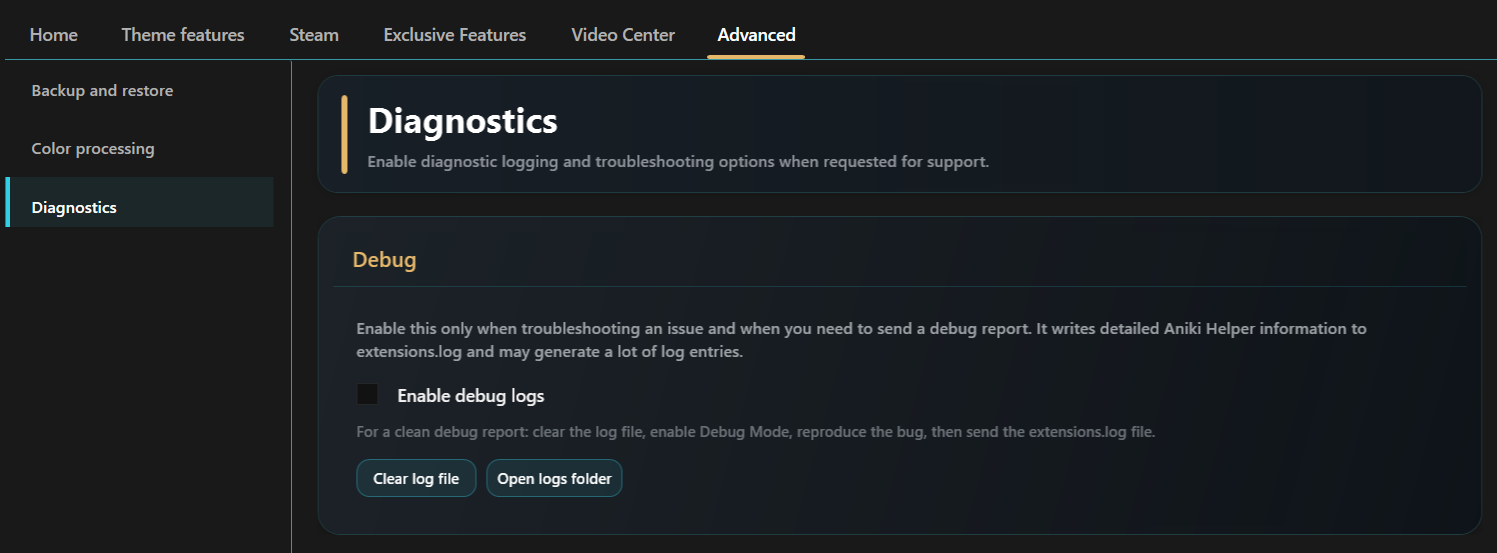
images/backup-reset-and-diagnostics-01.pngA short clean log is much easier to diagnose than a log containing hours of unrelated activity.
When to use Diagnostics
Use Debug Mode when:
- the developer asks for it;
- a bug is reproducible;
- normal settings checks did not explain the problem.
Do not leave verbose debug logging enabled permanently without a reason.